Working with MQTT in Node-RED: Complete Guide (2026)
Connect, subscribe, and publish MQTT messages in Node-RED
MQTT handles the messaging layer for most IoT deployments. Node-RED provides built-in nodes that connect to MQTT brokers, subscribe to topics, and publish messages—all through a visual interface.
This guide walks through the configuration steps and common patterns you'll need for working implementations.
What You'll Need
Before you start, make sure you have:
- Node-RED Instance: You need Node-RED running somewhere. Easiest option is FlowFuse, grab a free trial and you get a cloud-hosted instance ready to go. No server setup, no port forwarding hassles.
- MQTT Broker: You'll need an MQTT broker to handle message routing. If you're on FlowFuse Pro tier, you get a built-in MQTT broker service—no separate setup needed.
Getting Connected
Node-RED ships with MQTT nodes already installed. Open your Node-RED editor and look in the palette—you'll find mqtt-in and mqtt-out under the network section.
If you're using FlowFuse's managed MQTT broker, this is straightforward. Use the ff-mqtt-in and ff-mqtt-out nodes instead of the standard MQTT nodes. Simply drag one onto the canvas, and the connection to FlowFuse's broker will be configured automatically.
For any other broker, drag an mqtt-in or mqtt-out node onto your workspace. Double-click it to open the configuration panel.
Click the pencil icon next to Server. You'll see two tabs: Connection and Security.
Connection Tab
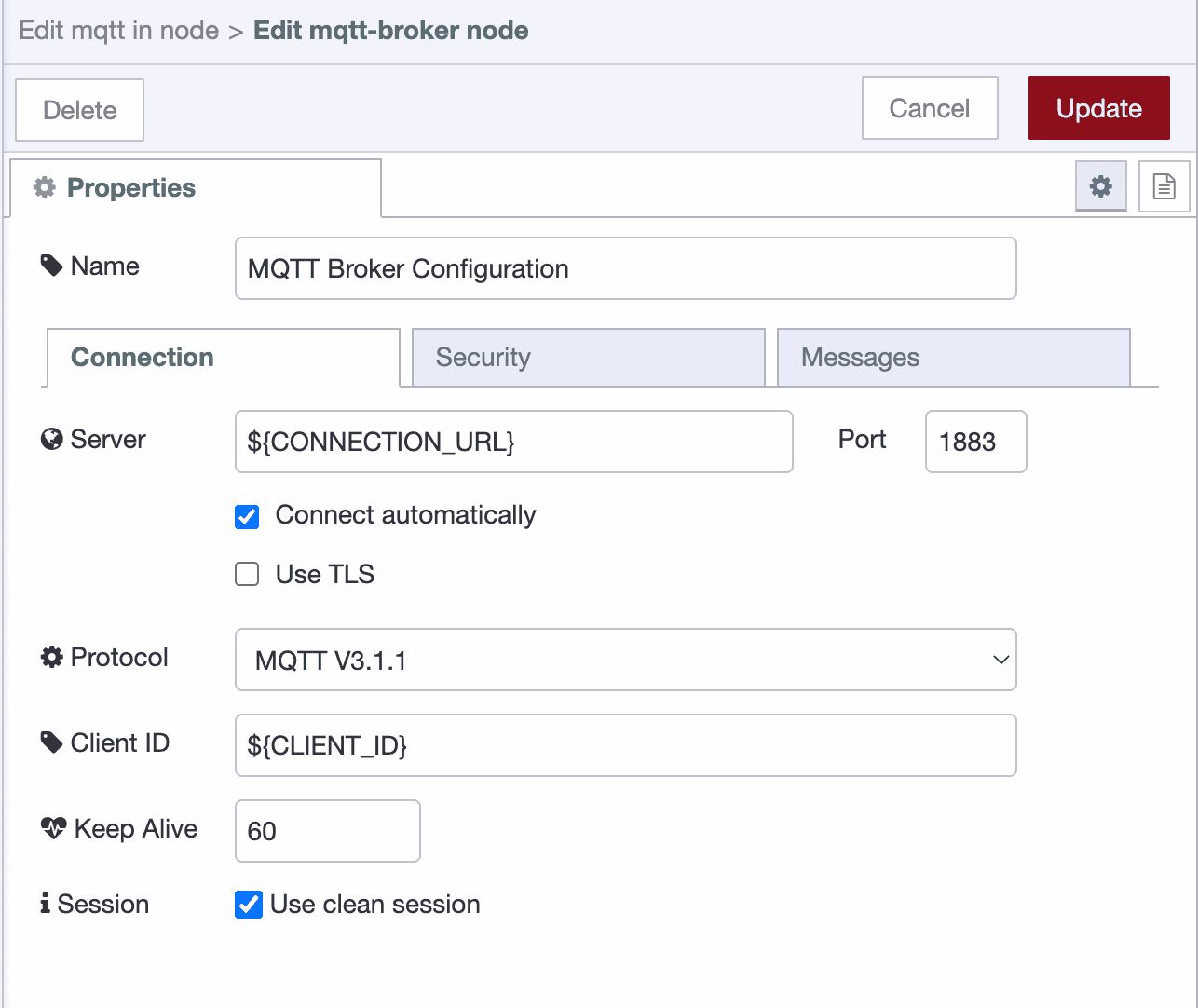
- Server: Enter your broker address (
broker.hivemq.comfor testing, or your broker's hostname) - Port: Use
8883for encrypted connections,1883for unencrypted - Enable TLS: Check this if you're using port 8883
- Protocol: Leave it at MQTT 3.1.1 unless you specifically need MQTT 5 features
Security Tab
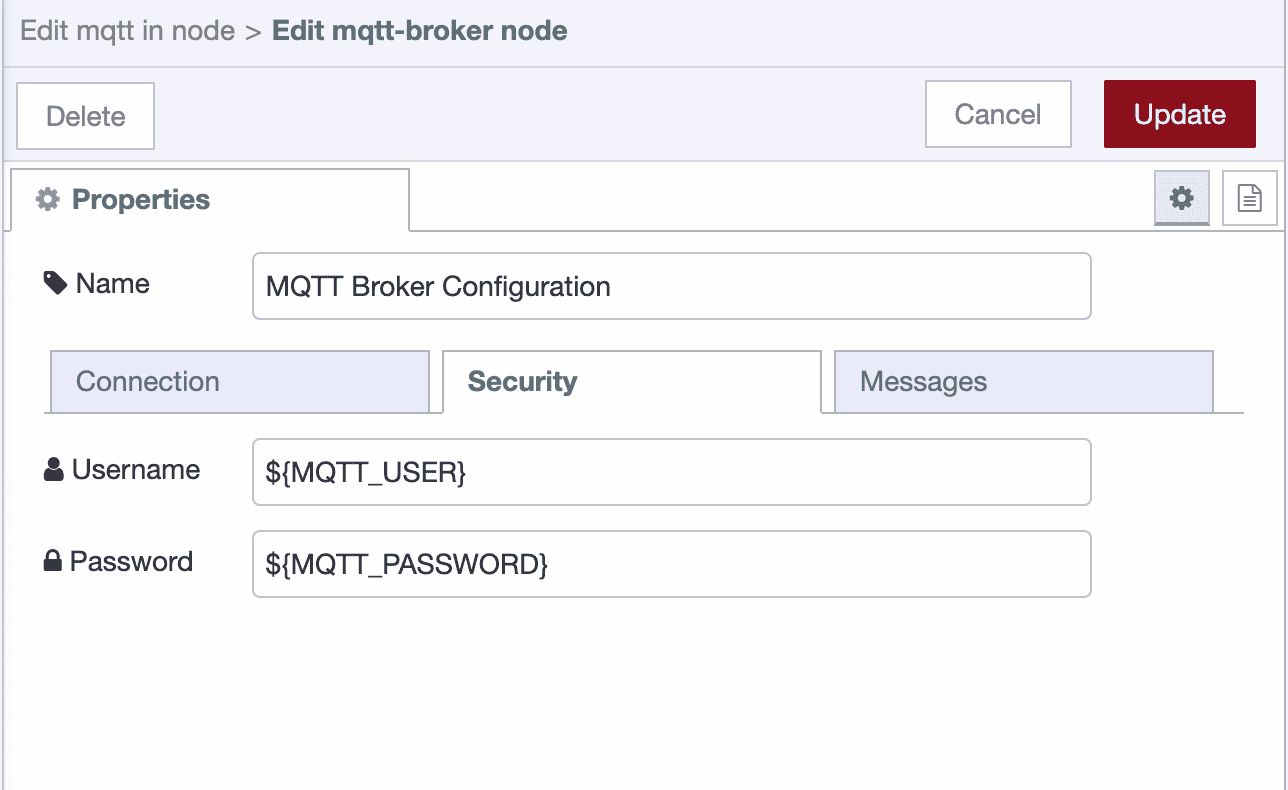
Enter your username and password. For anything beyond local testing, use environment variables:
- Put
${MQTT_USER}in the username field - Put
${MQTT_PASSWORD}in the password field
Set these in your Node-RED settings or FlowFuse environment config
See Using Environment Variables in Node-RED for setup details.
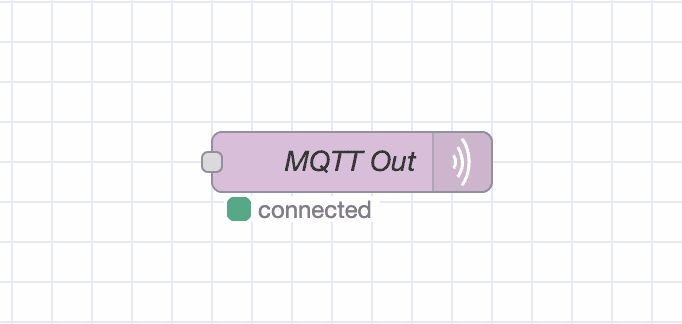
Click Add, then Done. Deploy your flow. If the node shows "connected" under it, you're in.
Publishing Data to a Topic on MQTT Broker
The mqtt-out node sends data from Node-RED to your MQTT broker. Configure the topic, quality of service level, and retention settings to control how your messages are delivered.
- Drag an mqtt-out node onto the canvas.
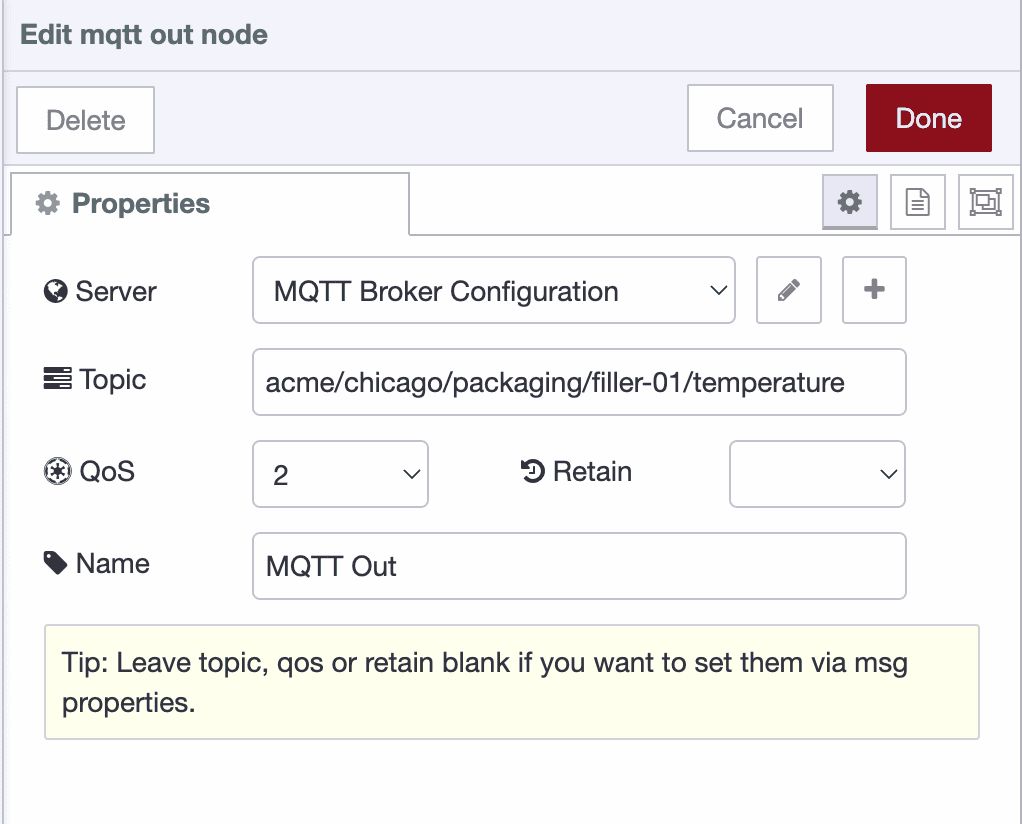
- Double-click the mqtt-out node and select your broker from the Server dropdown.
- Enter your topic name in the Topic field. Use forward slashes for hierarchy like
factory/line1/temp. - Set QoS to 2 for guaranteed delivery. Use 1 if you can tolerate occasional duplicates, or 0 for high-frequency data where missing readings don't matter.
- Enable Retain if new subscribers should immediately receive the last published value.
- Connect your data source to the mqtt-out node's input. The node expects
msg.payloadto contain your data.
Subscribing to a Topic on MQTT Broker
The mqtt-in node receives messages from topics you specify. You can subscribe to specific topics or use wildcards to monitor multiple topics at once.
- Drag an mqtt-in node onto the canvas.
- Double-click the mqtt-in node and select your broker from the Server dropdown.
- Set Action to subscribe to a single topic and enter the topic name in the Topic field. You can use:
- Specific topics:
factory/line1/temp - Single-level wildcard:
factory/+/temp(matches any value where + appears) - Multi-level wildcard:
factory/#(matches everything under factory/)
- Specific topics:
- Set QoS to 2.
- Set Output to auto-detect (it parses JSON automatically and passes through other formats as strings).
- Connect the mqtt-in node's output to wherever you need the data.
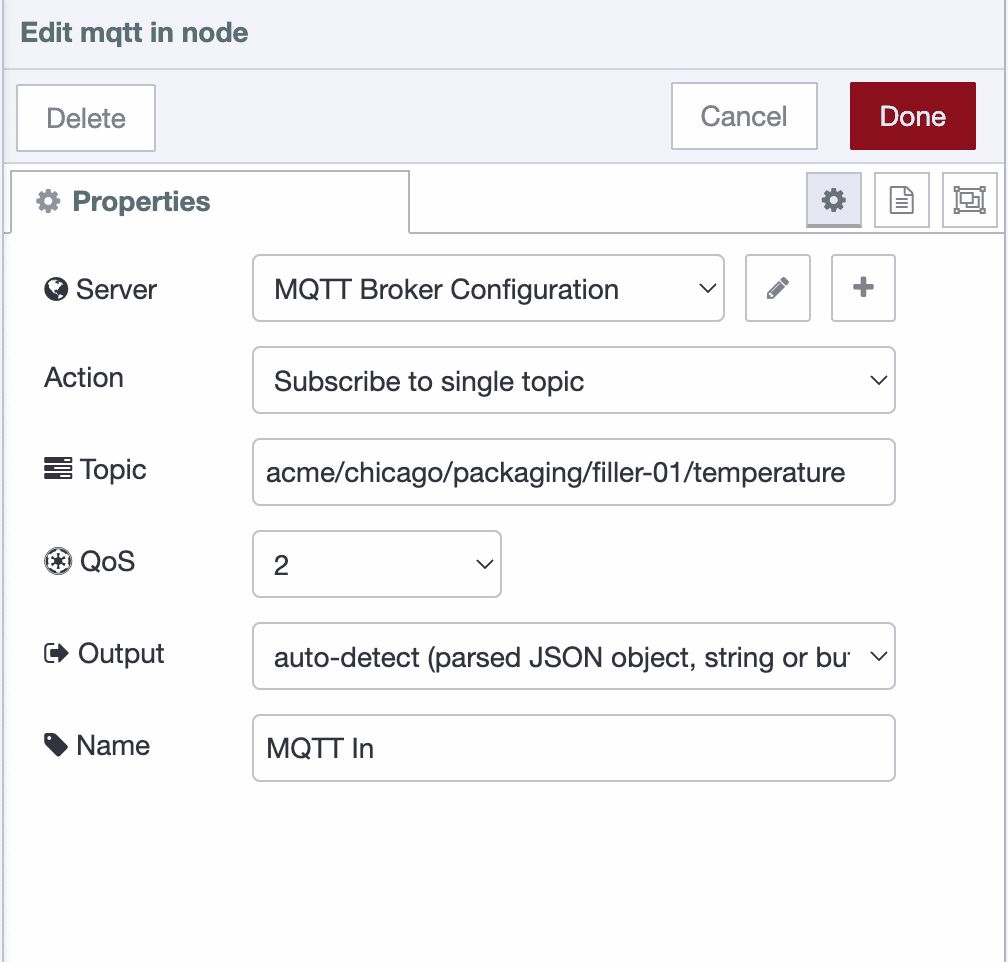
For Dynamic Subscriptions:
If you need to change subscriptions at runtime based on user input or system conditions, set Action to dynamic instead. You'll control subscriptions by sending messages with msg.topic and msg.action to the node's input.
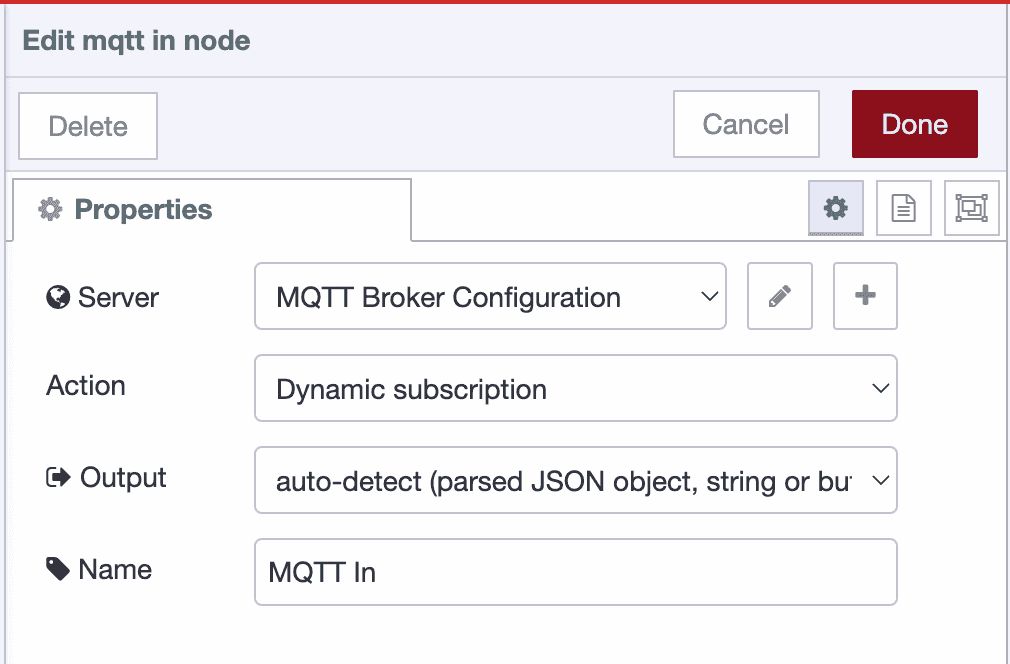
To subscribe dynamically, send a message like:
msg.topic = "factory/line1/temperature";
msg.action = "subscribe";
To unsubscribe:
msg.topic = "factory/line1/temperature";
msg.action = "unsubscribe";
This is useful when users select which equipment to monitor from a dashboard, when topics depend on database queries or API responses, or when you need to add and remove subscriptions without redeploying your flow.
Deploying the Flow
Deploy your flow to activate the MQTT connection and start sending or receiving messages.
- Click the Deploy button at the top-right corner.
Tip: Check the node status below each MQTT node. It will display 'connected' if the connection is successful.
Best Practices
Production MQTT deployments need more than basic configuration. These practices separate hobby projects from industrial-grade systems that run 24/7 without issues.
Security First
Always use TLS encryption. Unencrypted MQTT sends credentials and data in plain text across your network. Enable port 8883 with TLS on your broker, then check the Enable TLS box in your Node-RED broker configuration. No exceptions for production systems.
Never hardcode credentials. Putting usernames and passwords directly in nodes means anyone with access to your flows can see them. Use environment variables instead:
Username: ${MQTT_USER}
Password: ${MQTT_PASS}
Set these in your Node-RED settings file or FlowFuse environment configuration. See Using Environment Variables in Node-RED for the complete setup.
Implement access control on your broker. Not every device needs to publish and subscribe to every topic. Configure your MQTT broker's ACL (Access Control List) to restrict clients based on their role. Sensors should only publish to their specific topics. Dashboard applications should only subscribe to what they display. This limits damage if credentials get compromised.
Choose the Right QoS
QoS isn't a "set it and forget it" decision. Each level trades reliability against network overhead and latency.
QoS 0: Fire and forget. Use for high-frequency sensor data where missing one reading doesn't matter.
QoS 1: Guaranteed delivery, possible duplicates. Good for status updates and notifications.
QoS 2: Exactly once delivery with higher latency. Use for commands that trigger actions or critical transactions.
Match QoS to your use case. Don't default everything to QoS 2 just to be safe—you'll waste bandwidth and add latency where it doesn't help.
Design Your Topic Hierarchy Properly
Your topic structure determines how easy it is to filter, subscribe, and scale your system. A hierarchical approach mirrors your physical setup and makes wildcards useful.
Structure topics from general to specific:
company/location/area/equipment/measurement
Good hierarchy:
acme/chicago/packaging/filler-01/temperature
acme/chicago/packaging/filler-01/pressure
acme/denver/assembly/robot-03/temperature
acme/denver/assembly/conveyor-02/speed
Poor hierarchy:
temp-sensor-1
temp-sensor-2
pressure-sensor-1
line1-data
The difference: with a proper hierarchy, you can subscribe at any level. Need all data from Chicago? Subscribe to acme/chicago/#. Want temperature readings across all sites? Use acme/+/+/+/temperature.
Flat topics force you to subscribe to dozens of individual topics and manage them manually. Hierarchical topics let the broker do the filtering.
Keep it simple: Use lowercase, separate levels with forward slashes, use hyphens within names. Topics are paths, not sentences.
Conclusion
You now know how to connect Node-RED to MQTT brokers, publish data to topics, subscribe to incoming messages, and secure your deployment with TLS and proper credentials. That's the foundation.
Go build something. Connect a sensor, route the data, display it somewhere useful. The patterns you've learned here scale from a single device to entire factory floors.
When you hit the limits of managing individual instances—tracking deployments, coordinating updates, maintaining uptime across sites—that's when tools like FlowFuse become relevant. Until then, you have everything you need.
Frequently Asked Questions
Why does my MQTT node show disconnected?
Why does my MQTT node keep connecting and disconnecting?
Why do I keep getting old messages when I deploy?
Can I use wildcards in mqtt-in nodes?
What is the difference between QoS 0, 1, and 2?
How do I handle JSON data in MQTT messages?
How do I optimize MQTT messages in Node-RED?
About the Author
Sumit Shinde
Technical Writer
Sumit is a Technical Writer at FlowFuse who helps engineers adopt Node-RED for industrial automation projects. He has authored over 100 articles covering industrial protocols (OPC UA, MQTT, Modbus), Unified Namespace architectures, and practical manufacturing solutions. Through his writing, he makes complex industrial concepts accessible, helping teams connect legacy equipment, build real-time dashboards, and implement Industry 4.0 strategies.
Related Articles:
- MQTT Sparkplug B Implementation: Protocol, Architecture & Best Practices
- Bridging OPC UA Data to MQTT with Node-RED
- The Node-RED Story: How Visual Programming Escaped the Lab and Conquered Industry
- Node-RED Timer Tutorial: Create Stopwatch and Countdown Timers
- MQTT vs Kafka: Complete Comparison Guide 2026